 LUNEVON
Screen resolution describes the number of pixels used along two axes of a display or display mode, for example 1080 × 2400. Android does not guarantee that this value appears directly in the standard Settings interface on every phone, so a practical check starts with the exact device model and the manufacturer's official specification, followed by Android system information when you need current display data.
Several display values are easy to confuse. Resolution is not physical screen size, Android densityDpi is not necessarily the panel's physical PPI, and a 120 Hz display does not mean every app runs at 120 FPS. Android can also report a display mode or application window size that is different from the panel specification.
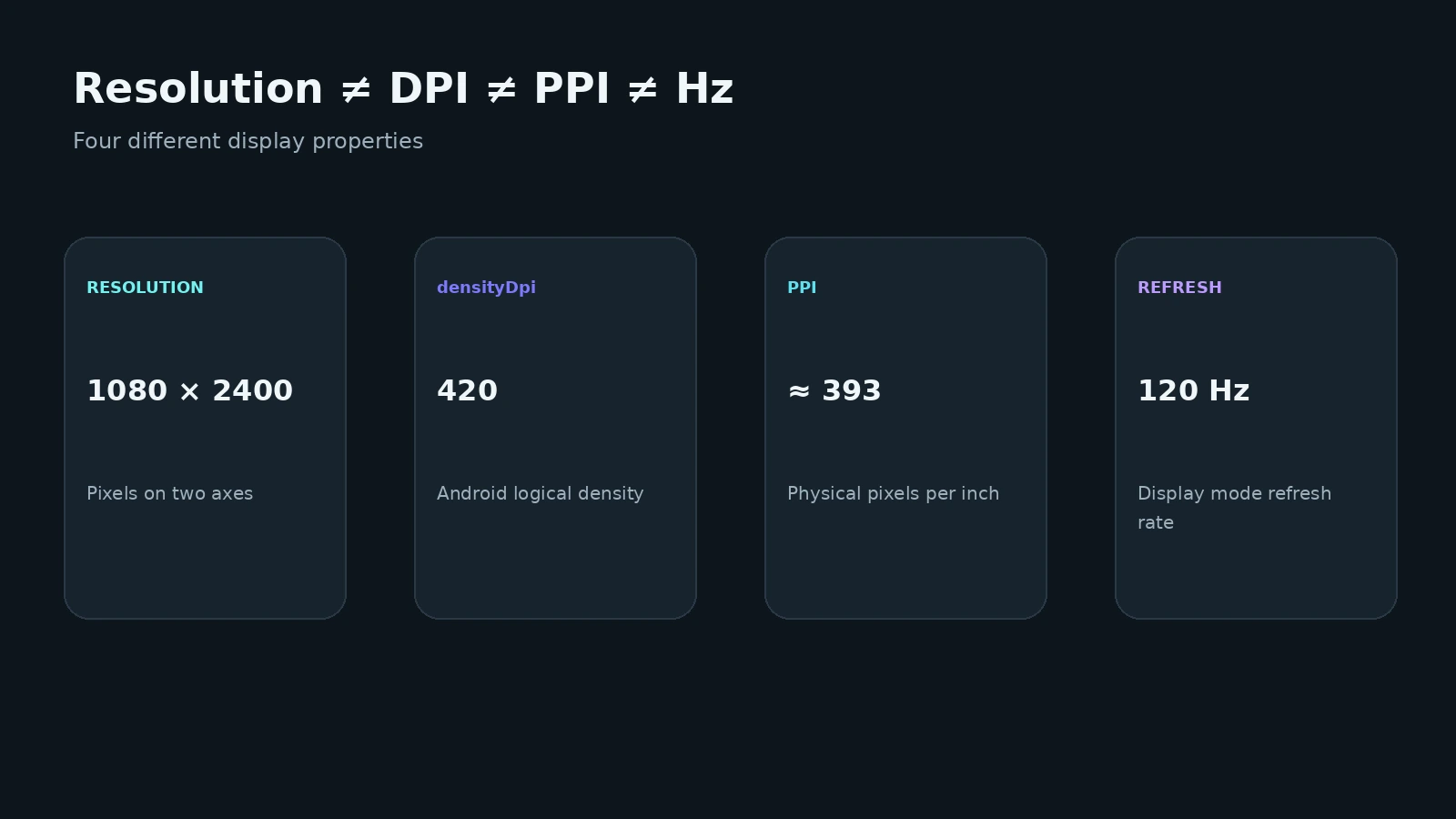
| Parameter | Example | What it means |
|---|---|---|
| Resolution | 1080 × 2400 | pixel dimensions along two axes |
| Size | 6.7″ | physical display diagonal |
| PPI | ≈ 393 ppi | physical pixel density |
densityDpi |
420 dpi | Android logical density |
| Refresh rate | 120 Hz | display mode refresh rate |
| Aspect ratio | 20:9 | width-to-height ratio |
The values are illustrative and do not describe one particular phone.
The quickest way to check a phone's screen resolution
For most users, this workflow is enough.
1. Identify the exact phone model.
Open About phone and find the model name or model number.
2. Check the official specification.
Look for the Display section. For physical panel characteristics such as marketed size and resolution, the manufacturer's specification is normally the clearest reference.
3. Use Android system information when you need current display data.
Android APIs can expose available display size, logical density, window bounds, and display modes. Each value needs to be interpreted according to the API that produced it.
4. Check Display settings.
Some manufacturers allow the user to select a resolution or refresh-rate mode. If so, the active mode can differ from the maximum mode listed in the product specification.
There is no universal Android Settings screen that is guaranteed to show the panel resolution on every phone.
What does screen resolution mean?
A value such as:
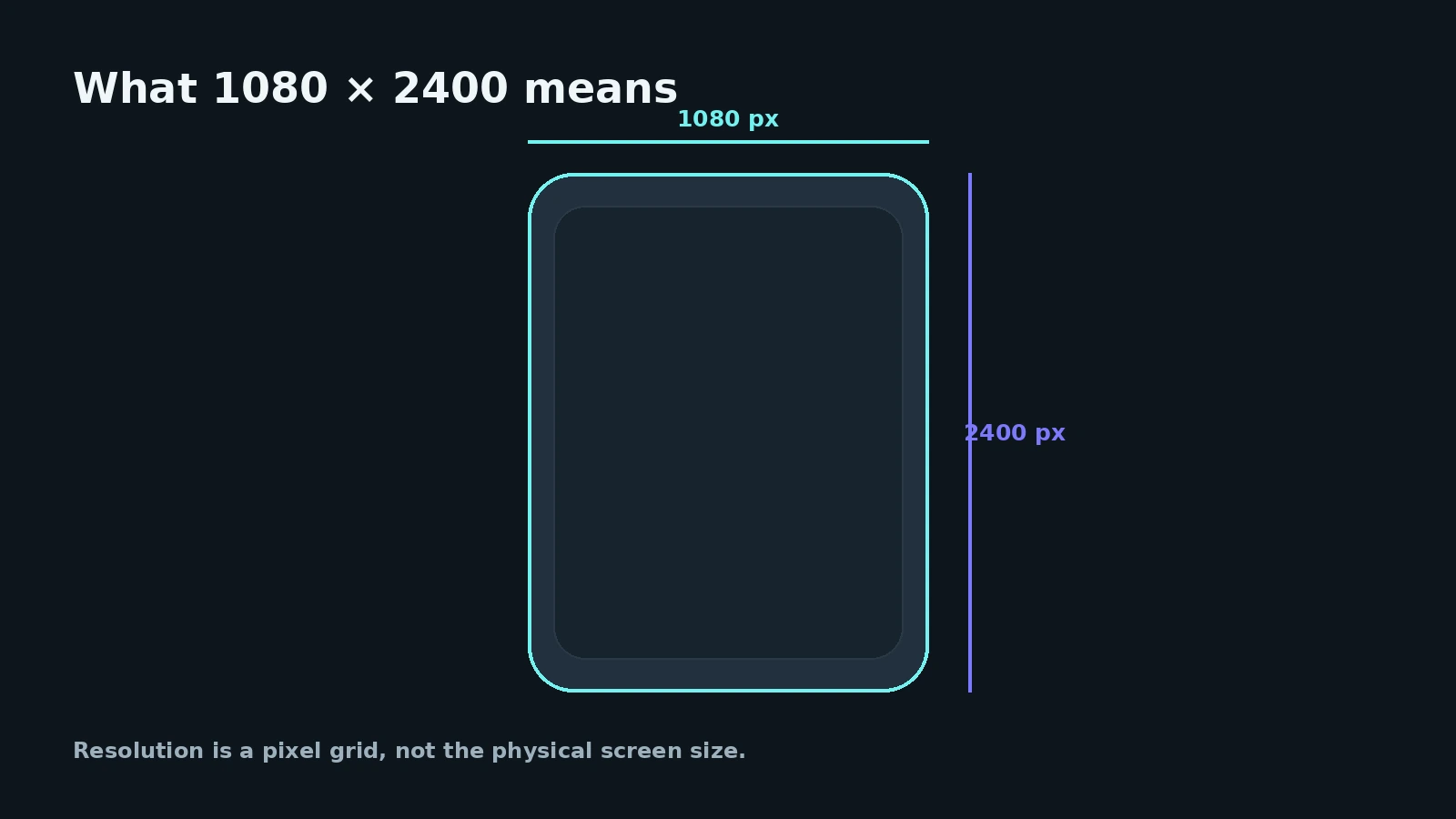
1080 × 2400
describes a pixel grid with 1080 pixels along one axis and 2400 along the other.
In portrait orientation, the smaller dimension is commonly listed first. In landscape orientation, width and height can be reversed.
The total pixel count in this example is:
1080 × 2400 = 2,592,000
or about 2.59 million pixels.
Resolution is not a complete display quality score.
Real-world display quality also depends on factors such as:
- physical panel size;
- pixel density;
- brightness;
- color performance;
- contrast;
- panel technology;
- refresh rate;
- system configuration;
- source content.
A higher resolution therefore does not automatically mean a better display.
How to check resolution from the exact phone model
If you want the advertised physical panel resolution, start with the exact model.
A practical sequence is:
- open device information;
- identify the full product name;
- record the model number when relevant;
- open the manufacturer's official product or support page;
- find the Display specification.
This matters when one commercial product family exists in several hardware variants.
System information is useful for checking the device's current configuration, while the official specification is better suited to the question: what panel and display modes did the manufacturer specify for this exact model?
How Android reports display information
Android offers several APIs for screen, display, and window information.
This is one reason two diagnostic tools can show different numbers while both are reading legitimate system data.
DisplayMetrics
DisplayMetrics includes values such as:
widthPixels;heightPixels;density;densityDpi;xdpi;ydpi.
Android defines widthPixels and heightPixels as the absolute width and height of the available display size in pixels.
The important detail is that an available display size and a specific display mode resolution are not automatically the same thing.
WindowMetrics
Modern Android uses WindowMetrics to describe application-window geometry.
getBounds() returns the bounds associated with the current window or UI context. The window can change because of:
- multi-window;
- split-screen;
- foldable states;
- resizable windows;
- system areas and cutouts;
- a different connected display.
A window size should therefore not be treated as the native panel resolution.
Display.Mode
Display.Mode describes a display mode.
Android exposes:
getPhysicalWidth();getPhysicalHeight();getRefreshRate().
The Android documentation explicitly notes that UI scaling can make the number of pixels available to applications different from the mode's actual resolution.
A good system-information tool should therefore make clear whether it is showing a display mode, display metrics, or window bounds.
Native panel resolution and current resolution are not always the same
It helps to separate three different layers.
Native or physical panel resolution
In user-facing hardware specifications, this normally means the physical pixel grid of the panel as advertised by the manufacturer.
For that value, the official specification for the exact model is the best starting point.
Current display mode
A device can support more than one mode.
Android Display.Mode describes a mode through width, height, and refresh rate. If the phone allows resolution switching, the current mode can be lower than the maximum supported mode.
Application window
This is the area assigned to a particular app window.
It can differ because of:
- system bars;
- camera cutouts;
- multi-window;
- foldable configurations;
- external displays;
- UI scaling.
The chain is roughly:
physical panel → selected display mode → system window → application area
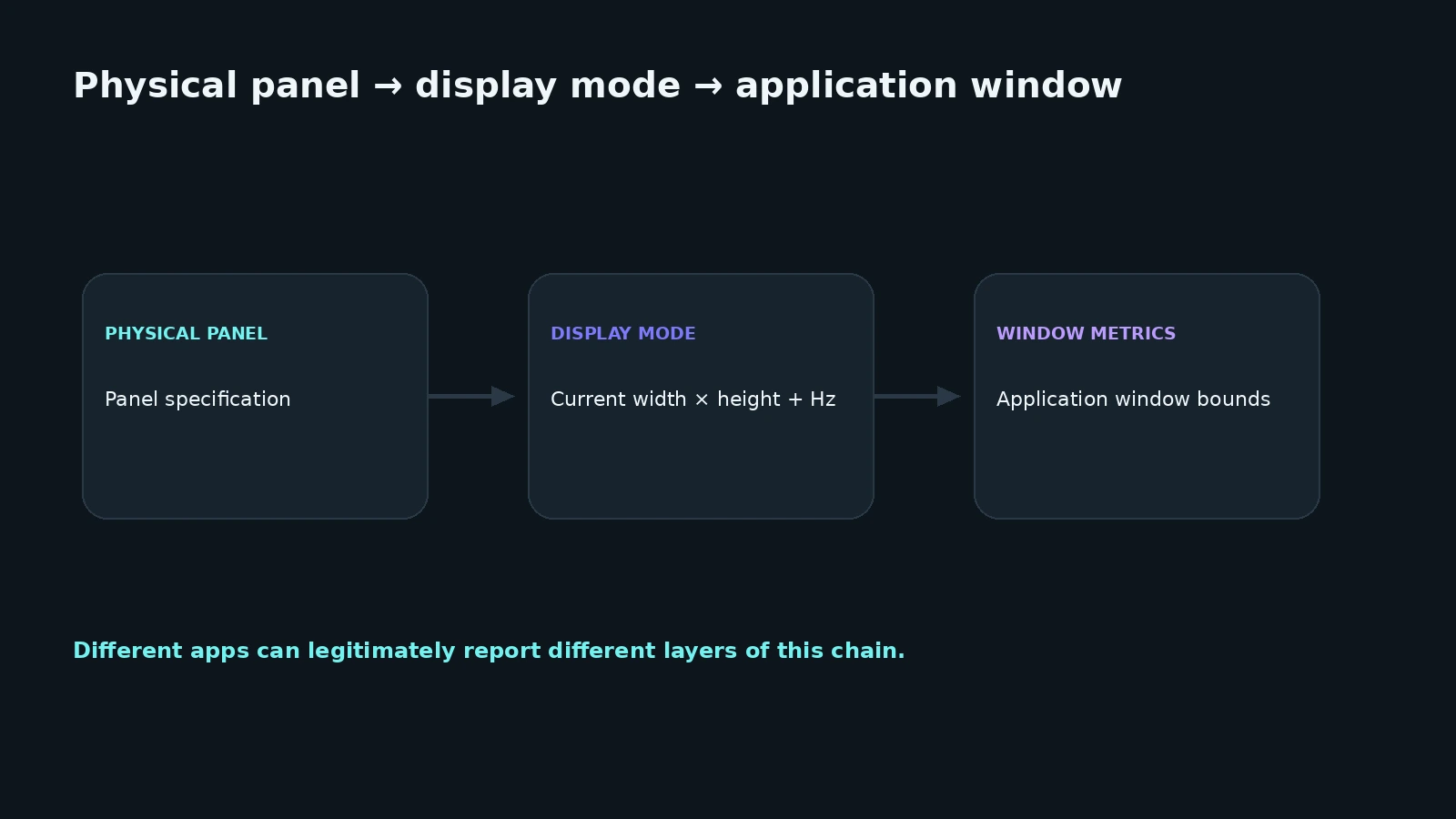
This is why an app-reported number should not automatically be compared with a product-specification number without checking what each source actually represents.
What does DPI mean on Android?
On Android, DPI often appears in the context of logical UI density.
DisplayMetrics.density is the scale factor used for density-independent pixels. Android uses an approximate 160 dpi baseline where one dp maps to one pixel.
densityDpi expresses density in Android's density system.
The Android documentation explicitly states that the logical density value does not exactly follow the real screen size. It is used to scale the overall UI.
That means a value such as:
densityDpi = 420
should not automatically be read as:
physical panel density = 420 PPI.
DPI and PPI are not the same thing
The terms are often mixed in casual specifications, but Android makes the distinction important.
PPI
PPI — pixels per inch — describes physical pixel density.
It depends on:
- the physical panel resolution;
- the real physical dimensions of the display.
Android densityDpi
This is a logical density value used by Android for UI scaling and resource selection.
It can be close to physical density, but it does not have to match the panel's actual PPI.
If you are trying to understand how densely physical pixels are packed, use PPI or calculate it from reliable physical dimensions.
If you are trying to understand Android UI scaling, density and densityDpi are the relevant values.
How to calculate PPI
For a rectangular display, a common formula is:
PPI = √(width² + height²) / diagonal
where:
widthis pixel width;heightis pixel height;diagonalis physical diagonal size in inches.
For an illustrative screen with:
- 1080 × 2400 pixels;
- a 6.7-inch diagonal;
the result is approximately:
√(1080² + 2400²) / 6.7 ≈ 393 ppi
This is an estimate.
Accuracy depends on the underlying physical measurements. Rounded display corners, marketed diagonal conventions, and the exact active area can also affect the result.
Most importantly, calculated PPI is not Android densityDpi.
What is dp and why does Android use logical density?
Android uses dp — density-independent pixels so the same interface does not become tiny on a panel with a very high physical pixel density.
The basic relationship is:
px → density → dp
Approximately:
px = dp × density
On a higher-density display, one dp can correspond to several physical pixels.
This is why increasing the panel resolution does not automatically shrink every Android button and label. Logical density lets Android keep UI elements at a usable scale across devices with different screen sizes and resolutions.
How to check refresh rate
Refresh rate describes how often a display mode refreshes the image.
Common modes include:
- 60 Hz;
- 90 Hz;
- 120 Hz;
- 144 Hz;
- other values.
Android Display.Mode exposes a refresh-rate value through getRefreshRate().
A specification such as:
“up to 120 Hz”
can indicate that a 120 Hz mode is supported. It does not necessarily mean that the panel stays at 120 Hz at every moment.
Modern phones can also switch modes dynamically based on content, power management, and system settings.
Refresh rate and FPS are different
Hz describes display refresh behavior.
FPS is the frame rate produced by an app, game, or other content source.
A 120 Hz screen does not guarantee 120 FPS.
For example, a display can refresh at 120 Hz while a game renders at 60 FPS.
Why different apps can report different display values
There are several legitimate reasons.
Different APIs.
One app may show DisplayMetrics; another may show Display.Mode.
Window size instead of display mode.
WindowMetrics describes the app's window.
A different selected resolution mode.
The phone can be running below its maximum resolution.
UI scaling.
Android can provide an application area that differs from the physical mode resolution.
Multiple displays or foldable states.
A device database.
An app may display a model specification rather than a live Android value.
Rounding or stale reference data.
A difference does not automatically prove that one app is wrong. First identify which value each app is actually reporting.
Why screenshot dimensions can differ from panel resolution
Screenshot dimensions sometimes match the current display output, but a screenshot is not a universal hardware-resolution test.
Its dimensions can be affected by:
- the active display mode;
- system screenshot implementation;
- system UI;
- scaling;
- an external display;
- OEM behavior;
- later image resizing.
A screenshot tells you the size of the captured image, not a guaranteed specification of the physical panel.
Checking display specifications on Samsung, Xiaomi and other Android phones
The general process is the same across manufacturers.
- Identify the exact phone model.
- Check the official product specification.
- Review Display settings.
- Compare with Android system information when necessary.
Some devices additionally let users select:
- resolution;
- refresh-rate mode;
- adaptive refresh;
- UI scale.
The exact controls and menu paths vary by model and software version, so there is no single reliable path for every Samsung, Xiaomi, HONOR, Realme, Tecno, or other Android phone.
If you need the processor, memory, battery, Android version, and other hardware information as well, see the central guide: How to check Android phone specifications: processor, RAM, display, battery, and system.
Display terms at a glance
| Term | Meaning |
|---|---|
| Resolution | pixel dimensions along two axes |
| Pixel | one element of a raster image |
| PPI | physical pixel density |
densityDpi |
Android logical density |
| dp | density-independent UI unit |
| Hz | display refresh rate |
| FPS | content frame rate |
| Aspect ratio | width-to-height relationship |
| Display mode | a display resolution / timing mode |
| Window bounds | geometry of an application window |
FAQ
Where can I find my Android phone screen resolution?
Start with the official specification for the exact phone model. For the current system mode, check Android system information or a Display setting if the manufacturer exposes one.
What does 1080 × 2400 mean?
It describes pixel dimensions along two axes: 1080 pixels on one axis and 2400 on the other.
How do I check screen DPI?
If you mean Android logical density, read densityDpi. If you mean physical panel density, PPI is the more appropriate measure.
Are DPI and PPI the same?
No. Android densityDpi is used for logical UI scaling. PPI describes physical pixels per inch.
How do I calculate PPI?
Use √(width² + height²) / diagonal, where width and height are pixel dimensions and diagonal is measured in inches.
How do I check the screen refresh rate?
Check the product specification and Display settings. Android also exposes refresh rate through Display.Mode.
What is the difference between 120 Hz and 120 FPS?
120 Hz is a display refresh rate. 120 FPS is the frame rate produced by an application or game. One does not guarantee the other.
Why does an app show a different resolution from the manufacturer's website?
The app may be reporting the active display mode, available display area, or window size, while the manufacturer is listing the physical panel specification.
Can I determine screen resolution from a screenshot?
Not reliably. Screenshot dimensions can reflect the current mode or image-processing path and do not prove the native panel resolution.
Sources and documentation
Technical statements in this guide were checked against primary documentation:
- Android Developers —
DisplayMetrics - Android Developers —
WindowMetrics - Android Developers —
Display.Mode - Android Developers — Display API deprecations / WindowMetrics
- Android Developers — grids and density-independent units
Lunevon DI
Android device information in one interface
Lunevon DI is designed to show system and hardware information that an Android device makes available. The exact data set depends on the phone model, Android version, and hardware platform.
For physical specifications of a particular display panel — such as marketed native resolution and diagonal size — compare system data with the manufacturer's official specification when needed.