 LUNEVON

You can find many Android phone specifications in About phone, storage and memory settings, and system information reported by the device. There is no single Android screen that is guaranteed to contain every hardware field, however. Each manufacturer decides which details to expose in its Settings interface.
That is why the exact device model, SoC, RAM, storage, display properties, battery information, Android version, and supported ABIs are often spread across several places. When Settings does not provide enough detail, the most reliable approach is to combine the exact model number with official specifications and system data exposed by Android.

| What to check | Example | Where to look |
|---|---|---|
| Device model | model number | About phone |
| Processor / SoC | Snapdragon / Dimensity / Exynos | system information / official specs |
| RAM | 8 GB | Settings / system information |
| Storage | 256 GB | Storage settings |
| Display | pixels, density, refresh rate | system data / official specs |
| Android | version, build, security patch | About phone |
| Battery | temperature, voltage, status | system data |
| ABI | arm64-v8a |
system information |
The quickest way to check your phone specifications
For a general hardware overview, start with a few simple steps.
1. Open Settings.
Look for About phone, About device, or a similar page. The exact wording depends on the manufacturer.
2. Record the exact device model.
The full model number is often more useful than the marketing name because it can identify a particular regional or carrier variant.
3. Check memory and storage separately.
RAM and internal storage are different resources and may appear in different sections of Settings.
4. Use system information when you need deeper hardware details.
Android exposes many device properties to apps, but the availability and meaning of individual fields can depend on Android version and the OEM implementation.
5. Compare unclear values with official specifications.
A product specification describes the hardware variant, while live system values describe the device as Android sees it now. They are related, but not always interchangeable.
Which phone specifications are actually useful?
For most users, the important information falls into a handful of groups.
Device identity
Manufacturer, model name, model number, and hardware identifiers help establish exactly which device variant you have.
Processor and graphics
Most people are trying to identify the SoC rather than only the CPU. A system-information tool may also expose CPU topology, GPU information, and supported ABIs.
RAM
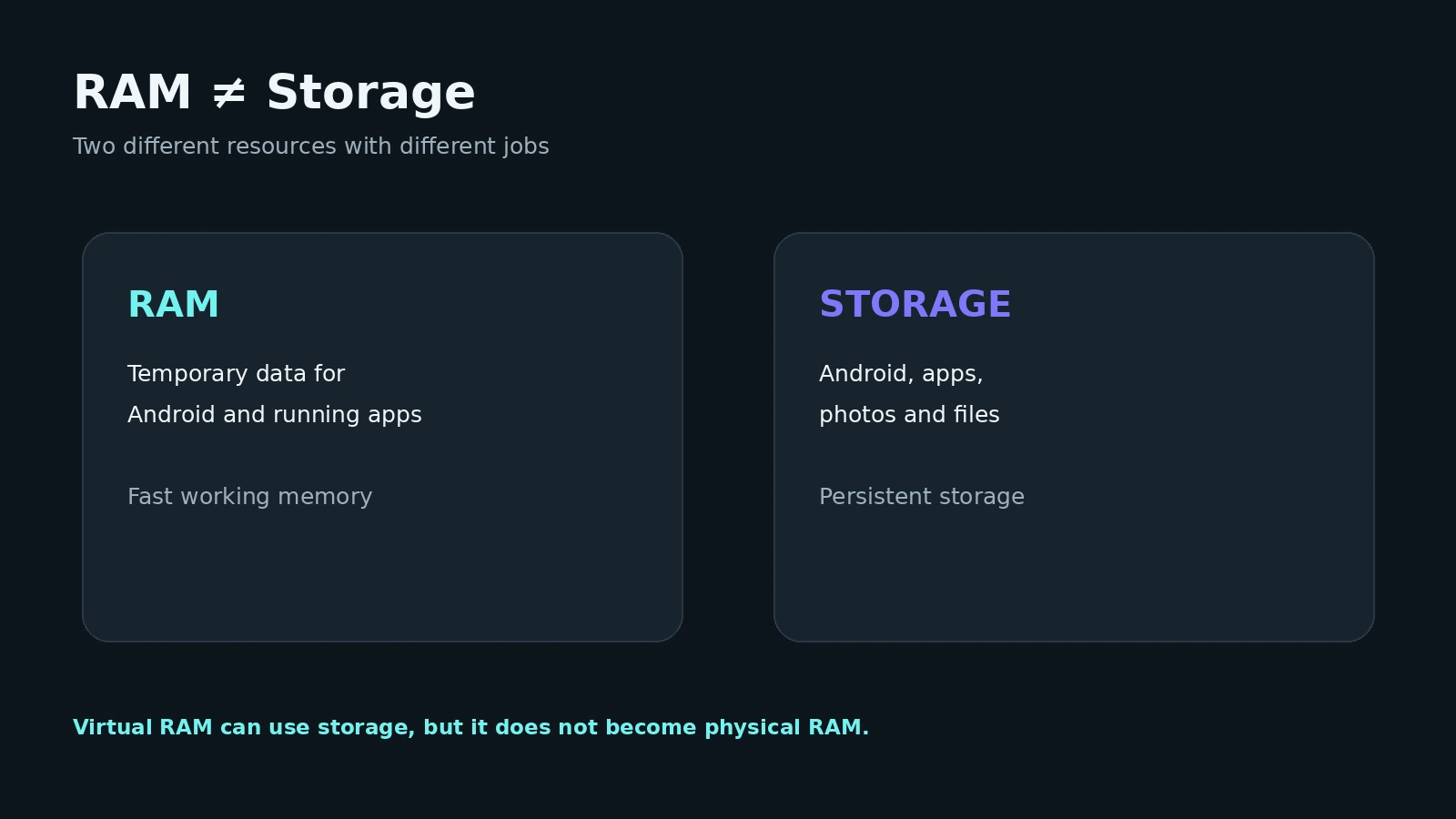
RAM is working memory used by Android and running apps. Physical RAM, currently available memory, and storage-backed memory-extension features are different things.
Internal storage
This is persistent storage used by Android, apps, and user files. Advertised capacity is not the same as free space after the device has been set up.
Display
Useful display properties include resolution, density, physical panel size, refresh rate, and active display mode.
Battery
Android can expose charge level, temperature, voltage, health state, current, and other values on supported devices. Remaining capacity and wear are not universally available.
System
Android version, build number, API level, security patch, and supported ABIs are useful when checking compatibility and software state.
Sensors, connectivity, and cameras
These can matter for specific technical tasks, but they are usually secondary in a general phone-specification check.
How to find the exact phone model
The device model is the foundation for checking the rest of the specification.
It helps to distinguish between:
- marketing name;
- manufacturer;
- model name;
- model number;
- Android device identifiers.
A commercial product family can contain several hardware variants, while the full model number can identify a more specific configuration.
Android apps can read general device identity through android.os.Build, including fields such as MANUFACTURER and MODEL. These strings are supplied by the device manufacturer, so they should not be treated as a replacement for complete product documentation.
On Samsung Galaxy devices, Samsung's current support documentation directs users to Settings → About phone / About tablet to view the model number. Samsung also notes that available screens can vary by carrier, software version, and device.
A practical verification path is:
exact model number → official manufacturer page → Android system information.
How to check the processor
When somebody asks which “processor” is in a phone, they usually mean the SoC — System-on-Chip.
Android does not guarantee that the SoC marketing name appears in the standard Settings interface. Starting with Android 12 / API level 31, however, the platform provides Build.SOC_MODEL and Build.SOC_MANUFACTURER for the primary SoC.
If About phone does not identify the chipset, use either:
- the exact device model and the manufacturer's specification;
- system information exposed by Android.
Do not treat ARM64 or arm64-v8a as a processor model. Those describe architecture or ABI-related properties, not a specific Snapdragon, Dimensity, or Exynos chip.
For the full explanation, see How to check which processor is in your Android phone.
How to check RAM
RAM is the working memory used by Android and active applications.
Several values are commonly confused.
Physical RAM is installed hardware memory.
Available memory is the amount the system currently considers available for additional work. It changes constantly.
Used memory includes Android, apps, caches, and other processes.
Android's ActivityManager.MemoryInfo exposes fields including totalMem and availMem. The Android documentation explicitly warns that availMem should not be treated as a simple absolute free-memory figure. totalMem represents memory accessible to the kernel and can differ from the number shown in retail specifications.
Newer APIs also include advertisedMem, intended to represent memory as an end user may encounter it in a retail environment. It can differ from kernel-accessible totalMem, for example because some memory is reserved below the kernel.
Storage-backed memory expansion is not extra physical RAM
Manufacturers may use names such as RAM Plus, Memory Expansion, Memory Extension, or Virtual RAM.
These features use internal storage to support memory management. They do not turn storage into the same thing as additional physical RAM.
How to check internal storage
Internal storage is persistent space used for Android, apps, photos, documents, and other data.
Settings commonly show:
- total filesystem capacity available to the system;
- used space;
- free or available space;
- storage categories.
Android's StatFs class exposes filesystem information including getTotalBytes() and getAvailableBytes().
The number shown by Android can differ from the capacity advertised on the box for several normal reasons:
- part of the storage is used by Android and system partitions;
- some space may be reserved;
- manufacturers advertise nominal device capacity;
- decimal and binary unit conventions can present the same byte count differently.
A phone advertised as 256 GB should therefore not be expected to show 256 GB of free user space after setup.
How to check display specifications
Useful display characteristics include:
- resolution;
- density;
- physical size;
- refresh rate;
- supported modes;
- active configuration.
Android DisplayMetrics exposes values such as widthPixels, heightPixels, and densityDpi.
densityDpi is the logical display density used by Android for UI scaling. It should not automatically be treated as the same thing as the marketing PPI value of the physical panel.
The pixel size available to an app can also depend on windowing, scaling, and the active mode. Android's Display.Mode separately describes display modes and their refresh rates.
Resolution is not screen size. Two displays with the same pixel count can have different physical dimensions and pixel density.
Refresh rate is not app FPS. A 120 Hz panel does not mean every app continuously renders at 120 frames per second.
How to check battery specifications
Battery percentage is only one part of battery information.
Depending on the device, Android can expose:
- charge level;
- charging status;
- power source;
- temperature;
- voltage;
- system health state;
- current and additional properties.
System Battery Health is not the same thing as an exact wear percentage, and rated capacity is not necessarily the current full-charge capacity after extended use.
For battery diagnostics, see How to check your Android phone battery: health, wear, capacity, and temperature.
How to check Android version and system information
The user-facing information is usually available under About phone, while apps can access software fields through Build and Build.VERSION.
Useful values include:
- Android version;
- build number;
- security patch level;
- API level / SDK;
- selected kernel and firmware details when relevant.
Build.VERSION.RELEASE reports the user-visible Android release, while SDK_INT reports the SDK/API level of the running system. SECURITY_PATCH exposes the user-visible security patch level and has been available since API level 23.
Android version and API level are related but not identical labels.
The Android version is the user-facing release name. API level describes the platform API available to applications.
The build number identifies a particular software build and should not be confused with either one.
What are Arm, ARM64, and ABI?
Android device information may include:
arm64-v8a;armeabi-v7a;- occasionally
x86orx86_64.
These are ABIs — Application Binary Interfaces, not processor model names.
Android provides the supported ABI list through Build.SUPPORTED_ABIS.
arm64-v8a targets 64-bit Arm, while armeabi-v7a targets 32-bit Arm.
For the relationship between SoC, CPU architecture, and ABI, see the processor identification guide.
How to verify the phone's real specifications
When users search for “real phone specifications,” they usually mean one of two things:
- they want to identify what hardware is actually in their device;
- they want to compare the phone with a store listing, marketplace listing, or product page.
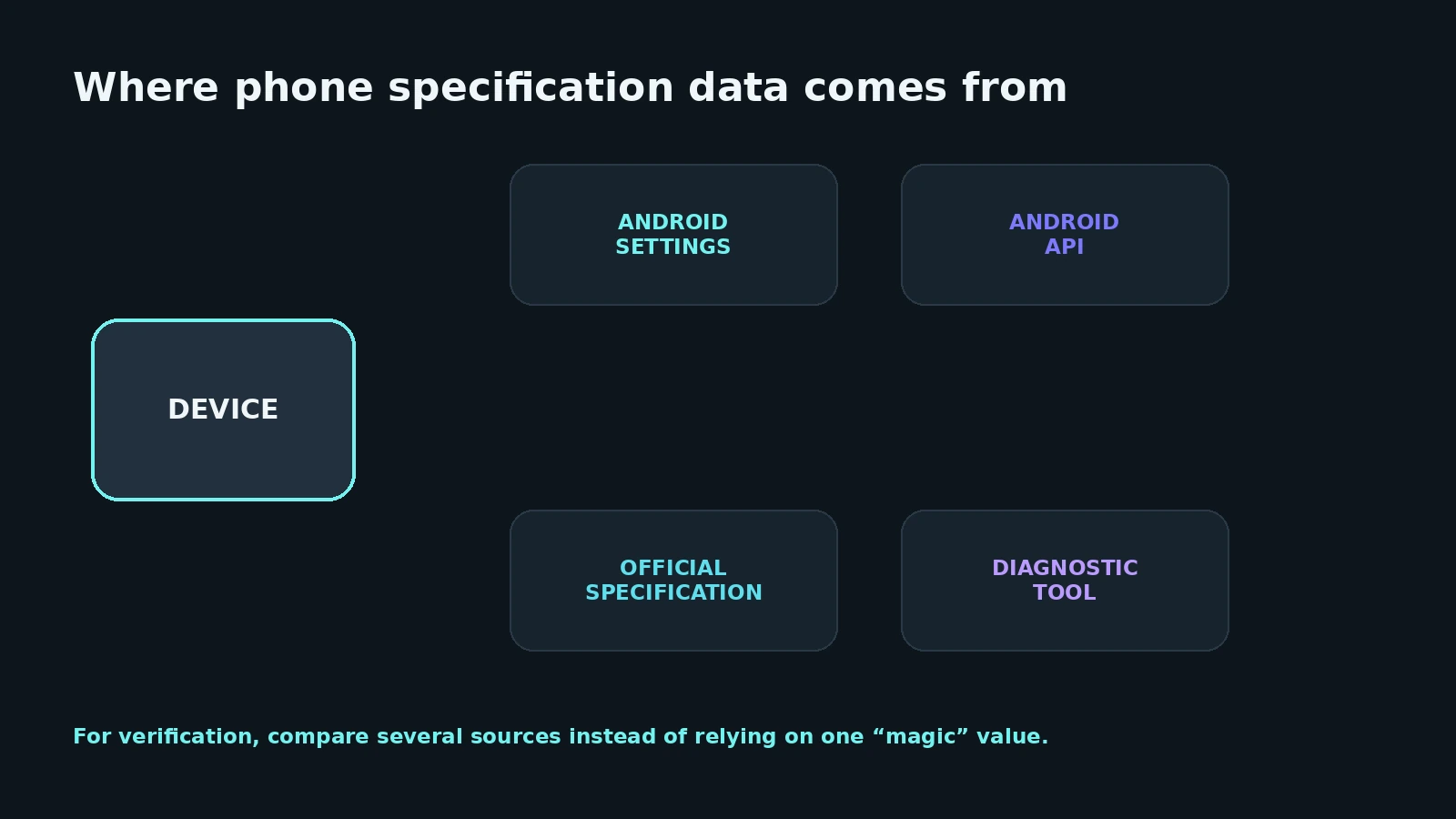
Do not rely on a single source for this.
1. Android system information
This shows what the platform actually exposes: model, ABI, memory values, display information, battery properties, and other available fields.
Android APIs still have limits. A property can be missing, represented by a low-level identifier, or depend on OEM implementation.
2. Exact model number
This is the key to identifying the correct device variant.
3. Official manufacturer documentation
Use it for properties that cannot be reliably derived from a live system value, such as the marketed panel size, nominal battery capacity, and hardware configuration of a particular variant.
4. Diagnostic tools
They can combine system information in one interface, but the origin and meaning of each field still matter.
5. Third-party specification databases
These can be useful as a secondary reference, but should not be the sole technical source of truth.
Can an app prove that a phone's specifications are genuine?
Not by itself.
A mismatch in one model string or hardware identifier is not proof that a device is counterfeit. A more serious check should compare multiple independent signals:
- model number;
- Android-reported values;
- official specification;
- IMEI or serial information where appropriate;
- observable hardware behavior.
If two apps report different SoC or model strings, first determine whether they are reading the same underlying source.
How to check Samsung Galaxy specifications
On Samsung Galaxy devices, the basic workflow starts with About phone.
Samsung's support documentation says that model number, IMEI, and serial number are available through Settings, while exact screens can vary with the carrier, software version, and model.
For a general check:
- open About phone;
- record the exact model number;
- find the official Samsung page for that specific model;
- compare the product specification with Android system information.
This is more reliable than searching only by a broad Galaxy marketing name.
Is the process different on Xiaomi, Redmi, Honor, Realme, Tecno, and other phones?
The interface is different, but the categories of data are similar.
Different Android manufacturers use their own Settings layouts and decide which fields to expose directly to users.
You will still be looking for broadly the same groups:
- model;
- RAM;
- storage;
- display;
- battery;
- Android version;
- ABI;
- sensors.
What changes is where those fields appear and how much information the OEM exposes through its user interface and system implementation.
There is therefore no universal “all Android specifications are in this exact menu” path.
What the main phone specifications mean
| Parameter | What it means | Do not confuse it with |
|---|---|---|
| SoC | primary system chip | CPU alone |
| CPU | general-purpose processor cores | complete SoC |
| RAM | working memory | storage |
| Storage | persistent data space | RAM |
| Resolution | number of pixels | physical screen size |
| Density / DPI | Android UI density | automatically the panel's exact PPI |
| Refresh rate | display update frequency | application FPS |
| Battery health | system battery condition | exact wear percentage |
| ABI | native-code interface | SoC model |
| API level | Android platform API level | firmware build number |
FAQ
Where can I see all Android phone specifications?
Some details are available in About phone, while RAM, storage, and battery may be in separate Settings sections. For deeper hardware information, use Android system data and the official specification for the exact device model.
How do I find my exact phone model?
Open About phone and look for the model name or model number. For official hardware specifications, the complete model number is usually more useful.
How do I check the phone processor?
Use the official specification for the exact model or Android system information. Starting with API level 31, Android exposes dedicated fields for the primary SoC model and manufacturer.
How can I check the amount of RAM?
Use the manufacturer's Settings interface or system information. Do not confuse physical RAM with currently available memory or storage-backed virtual memory.
Why is there less storage than the advertised capacity?
Android and system partitions use part of the storage, and some space can be reserved. Nominal storage capacity and the way software displays units can also differ.
When little free space remains, sustained write performance can also suffer. The NAND mechanisms and limitations behind this effect are examined in our LUNEVON LABS research on nearly full SSDs and phone storage.
How do I check screen resolution?
Use the official specification or display system data. Depending on display mode and scaling, the pixel dimensions available to an app can differ from the physical panel resolution.
How do I check battery specifications?
Android can expose charge level, temperature, voltage, status, and other values. Capacity and wear estimates depend on the data supported by the device.
Can I verify the real specifications of a phone?
Yes, but compare several sources: system data, the exact model number, and official manufacturer documentation. One app alone cannot guarantee complete hardware verification.
Why do different apps show different values?
They may use different Android APIs, system properties, hardware identifiers, or internal lookup databases. Some fields also depend on Android version and OEM implementation.
Where can I find the Android version?
It is normally listed under About phone or software information. Android exposes the release through Build.VERSION.RELEASE and the API level through SDK_INT.
Sources and documentation
Technical statements in this guide were checked against primary sources:
- Android Developers —
android.os.Build - Android Developers —
Build.VERSION - Android Developers —
ActivityManager.MemoryInfo - Android Developers —
StatFs - Android Developers —
DisplayMetrics - Android Developers —
Display - Android Developers —
BatteryManager - Samsung Support — Galaxy model and device identifiers