 LUNEVON

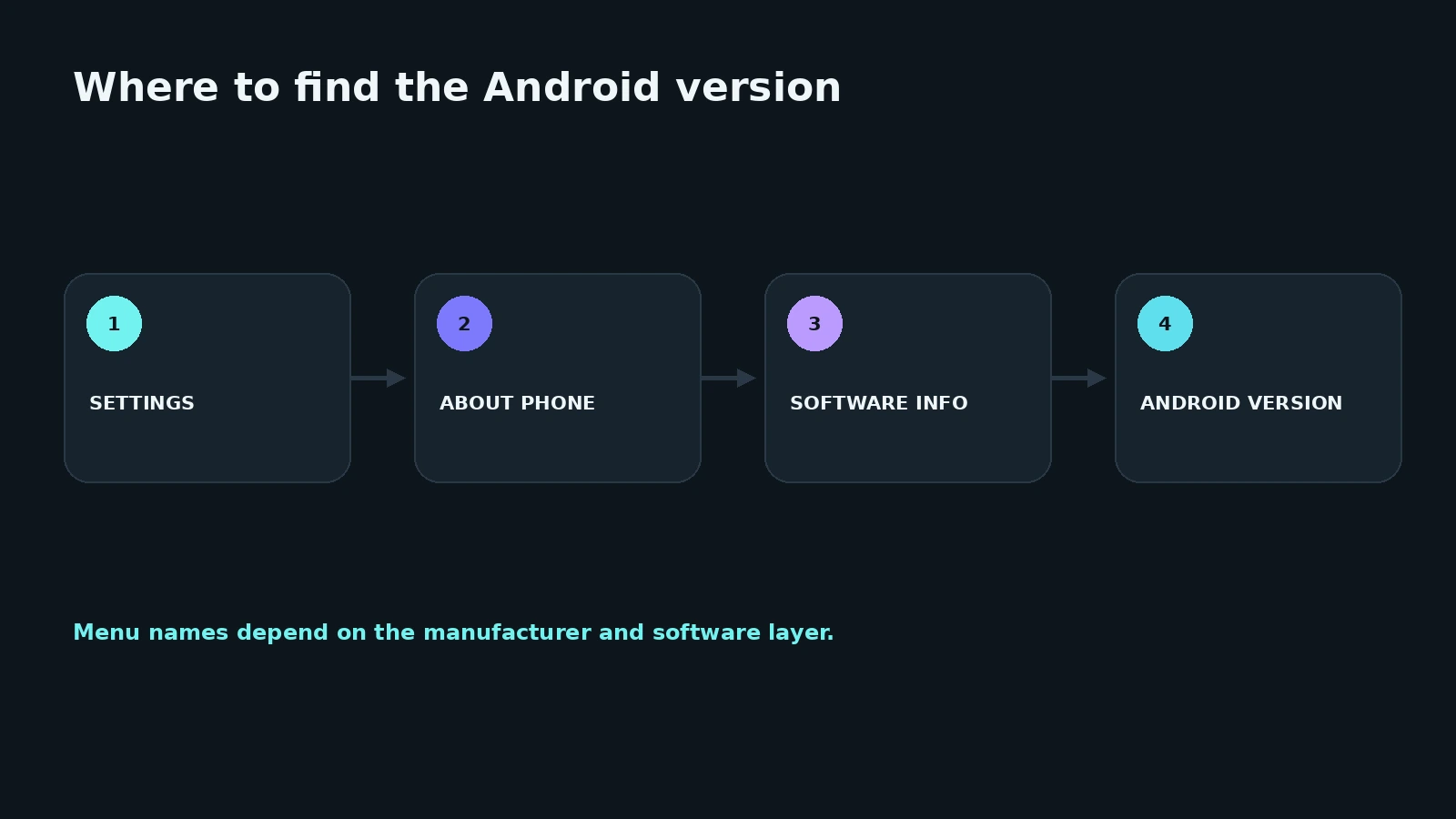
On most Android phones, the installed OS version is listed under Settings → About phone / About device / Software information. The exact path depends on the manufacturer and its software skin. The same screen may also show an API level, build number, security patch, and OEM software version — but these are different values, not alternate names for the Android version.
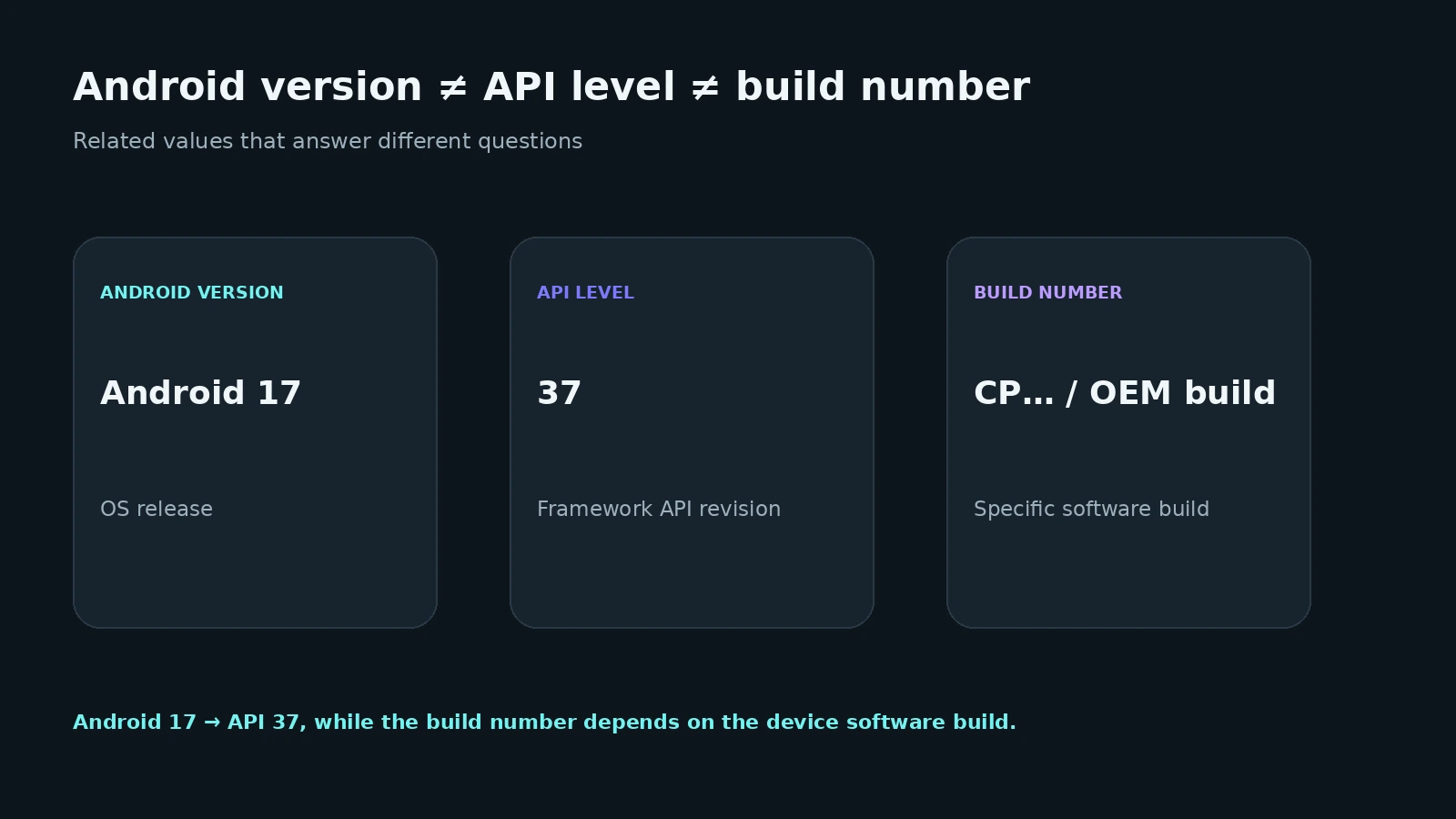
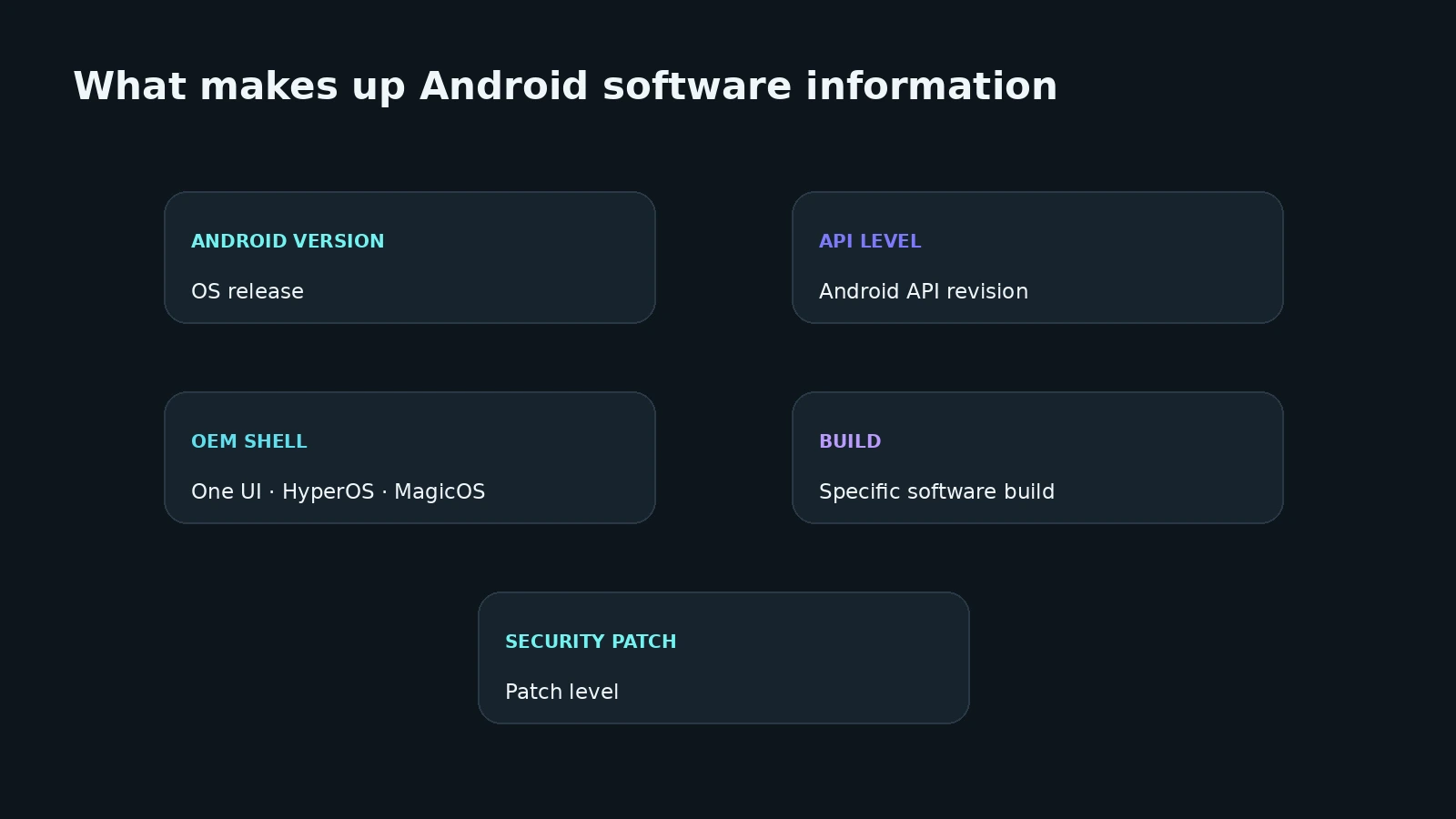
The key distinction is simple: Android version is the user-facing OS release, API level identifies the Android framework API revision, build number identifies a particular software build, security patch indicates the applied security patch level, and One UI, HyperOS, or MagicOS are manufacturer software layers.
| Value | Example | What it means |
|---|---|---|
| Android version | Android 15 | user-facing OS release |
| API level | 35 | Android framework API level |
| Build number | AP3A… | identifier for a specific software build |
| Security patch | YYYY-MM-DD date | security patch level |
| OEM shell | One UI / HyperOS / MagicOS | manufacturer software layer |
| Kernel version | kernel release | system kernel version |
The examples show the format of each field and are not specifications for one particular phone.
The quickest way to find your Android version
You normally do not need another app.
- Open Settings.
- Find About phone, About device, or Software information.
- Look for Android version.
On Samsung Galaxy devices, Samsung documents the path Settings → About phone / About tablet → Software information. Other manufacturers use different names.
If the same screen also shows build number, security patch, or a One UI / MagicOS / HyperOS version, do not treat those as another Android version. They describe different parts of the software stack.
What the Android version means
Android 13, 14, 15, 16, and 17 are user-facing major platform releases.
Android exposes the user-visible version string through Build.VERSION.RELEASE. The API documentation describes this as an opaque string, so software should not assume that arbitrary release strings always have a structure that can safely be parsed or ordered.
The Android version does not describe the entire software configuration of the phone.
Two devices on the same Android release can still have:
- different OEM skins;
- different builds;
- different security patch levels;
- different vendor drivers;
- different system applications;
- different manufacturer features.
“Both phones run Android 16” therefore does not mean that their complete software stacks are identical.
What is an API level?
API level is the integer identifier for a revision of the Android framework API offered by a platform release.
Applications use it to understand which platform APIs are available.
Android exposes the major SDK/API level through Build.VERSION.SDK_INT.
As of this guide's update, recent major releases map as follows:
| Platform version | API level |
|---|---|
| Android 17 | 37 |
| Android 16 | 36 |
| Android 15 | 35 |
| Android 14 | 34 |
| Android 13 | 33 |
Android Developers publishes the official platform version ↔ API level mapping.
Android version and API level are not the same value
For example:
Android 15 → API level 35
Android 15 is the user-facing platform release.
API level 35 is the technical major API revision.
They are related, but they answer different questions.
Starting with Android 16, Android also provides SDK_INT_FULL, which represents the major and minor SDK version. Minor platform releases can add APIs without changing the major SDK_INT. For a normal user checking a phone, Android version plus the major API level is still the clearest pair.
What is the Android build number?
A build number helps identify a particular software build installed on a device.
It is useful when you need to:
- distinguish one update from another;
- report the exact software build to support;
- confirm that a particular update was installed;
- compare device software with technical documentation;
- investigate differences between two phones.
Android exposes several related fields.
Build.ID is a build identifier such as a changelist or label.
Build.DISPLAY is a build ID string intended for display to the user.
Build.FINGERPRINT is a string that uniquely identifies a build. Android explicitly says not to parse this value yourself.
A build number is not the Android version. The same Android release can exist in many different builds across manufacturers and models.
What is a build fingerprint?
A build fingerprint is a technical string identifying a particular device build.
It is useful in engineering, support, and troubleshooting, but a normal user does not need it simply to find the Android version.
If a system-information tool displays a long manufacturer/product/device:version/build/... string, that is not another OS release number. It is a build identifier.
What does “firmware version” mean?
The word firmware is used loosely around Android phones.
Depending on context, it can mean:
- a complete system image;
- a specific OEM Android build;
- an OEM software release;
- an update package;
- the phone's software as a whole.
Standard Android does not provide one universal Firmware Version field with the same meaning on every device.
When comparing technical information, it is better to identify the exact field:
Android version, build number, OEM software version, modem firmware, or another component.
What is the Android security patch level?
Android has a separate Security Patch Level.
Build.VERSION.SECURITY_PATCH exposes the user-visible security patch level and has been available since API level 23. Android documents it as the date when the device most recently applied a security patch level.
This means:
Android version and security patch date can change independently.
A phone can remain on the same Android major release while receiving newer security patches.
Conversely, the Android major version alone does not tell you how recent the device's security patch is.
The patch date is also not a universal “security score.” Actual device security depends on additional vendor components, kernel and module updates, supported fixes, and the manufacturer's maintenance policy.
Android and the manufacturer software layer are different things
Android is the base platform.
Manufacturers can add their own software layer and system components.
Examples include:
- Samsung One UI;
- Xiaomi HyperOS;
- HONOR MagicOS;
- realme UI.
The OEM version number cannot simply be substituted for the Android version.
For example, One UI 8 does not mean Android 8. Samsung exposes One UI version, Android version, and build number as separate software values.
HONOR also publishes MagicOS and Android versions separately. Its current support tables, for example, list MagicOS 10 and Android 16 in separate columns for supported models.
Where to find the version on Samsung, HONOR, Huawei, and other phones
Samsung
Samsung's current support path is:
Settings → About phone / About tablet → Software information
The page can show One UI version, Android version, build number, and other software details. Exact menus can vary by model, region, and carrier.
HONOR
On HONOR phones, keep MagicOS and the underlying Android version separate. HONOR's official maintenance information publishes them as separate fields.
If Settings prominently displays MagicOS, do not assume the same number is the Android version.
Huawei
On Huawei devices, first determine which software platform is actually installed on that model and in that region.
Huawei support documents version information under Settings → System → About phone. Huawei also ships software platforms including EMUI and HarmonyOS, so the normal “find the Android version” workflow does not apply identically to every modern Huawei device.
A HarmonyOS version should not be interpreted as an Android version number.
Other manufacturers
Xiaomi, Redmi, realme, Tecno, and other Android phones follow the same general idea:
Settings → device/system information → software details.
The exact labels depend on the manufacturer. There is no single menu path guaranteed across all Android phones.
Reading Android version through system information
A system-information app can place several Android values on one screen even though the platform stores them separately.
The most useful fields include:
| Android field | What it represents |
|---|---|
Build.VERSION.RELEASE |
user-visible Android release string |
Build.VERSION.SDK_INT |
major SDK / API level |
Build.VERSION.SECURITY_PATCH |
security patch level |
Build.ID |
build identifier |
Build.DISPLAY |
build ID intended for display |
Build.FINGERPRINT |
string uniquely identifying the build |
This is why a technical app can show Android 15, API 35, and a long build fingerprint at the same time: they describe different parts of the same software environment.
For a broader device overview covering the processor, RAM, display, battery, and other system data, see How to check Android phone specifications: processor, RAM, display, battery, and system.
How to check the Android version with ADB
ADB is optional and mainly useful for developers or technical troubleshooting.
With Android Debug Bridge configured and the device connected, these system properties can be queried:
adb shell getprop ro.build.version.release
adb shell getprop ro.build.version.sdk
adb shell getprop ro.build.version.security_patch
adb shell getprop ro.build.id
adb shell getprop ro.build.fingerprint
The Android Open Source Project itself uses adb shell getprop ro.build.version.sdk as a way to retrieve a device's API level in CTS setup documentation.
ADB does not make the values inherently “more real.” It simply reads system properties without using the Settings UI.
You do not need Developer options or ADB for a normal version check.
Why Android version information may look different in different places
Usually the values are not contradictory — you are comparing different fields.
One device can simultaneously report:
- Android 16;
- API level 36;
- One UI or MagicOS version;
- a build number;
- a security patch date;
- a manufacturer-specific software package version.
An OEM Settings app may show a friendly software version while a diagnostic tool shows Build.ID, DISPLAY, or a fingerprint.
Before deciding that two readings conflict, determine which system field each value represents.
How to tell whether your Android software is up to date
The Android major version alone is not enough.
A practical check is:
- open System update / Software update;
- check whether an update is available;
- look at the security patch date;
- check the manufacturer's support policy for your exact model.
A device may stay on one Android major release while continuing to receive security patches. The absence of a newer Android major version also does not automatically indicate a failed update; support schedules are model-specific.
FAQ
Where can I find the Android version on my phone?
It is usually under About phone, About device, or Software information. Samsung uses Settings → About phone → Software information. Other manufacturers can use different labels.
What is Android API level?
It is the integer identifier of the major Android framework API revision. Apps use it to determine platform capabilities.
How can I check my phone's API level?
A system-information tool can display it from Build.VERSION.SDK_INT. With ADB, the corresponding system property is ro.build.version.sdk.
What is the difference between Android version and API level?
Android version is the user-facing platform release, such as Android 16. API level is the technical framework revision, such as API level 36 for Android 16.
What does the build number mean?
It identifies a particular software build. It is useful for support, update verification, and troubleshooting, but it is not the Android version.
Where can I find the Android security patch?
Many phones show it in software or security information. Android exposes the value through Build.VERSION.SECURITY_PATCH.
Is the OEM skin version the same as the Android version?
No. One UI, HyperOS, MagicOS, and other OEM layers have their own version numbers and do not replace the underlying Android version.
Why do two Android 15 phones have different build numbers?
Because build numbers identify OEM- and model-specific software builds. Two devices can share the same Android major release without sharing the same build.
Can I check the Android version without opening Settings?
Yes. A system-information app can read the release and API level, and technical users can query the corresponding system properties through ADB.
Sources and documentation
Technical statements in this guide were checked against primary sources:
- Android Developers — API levels and platform versions
- Android Developers —
Build.VERSION - Android Developers —
android.os.Build - Android Open Source Project — CTS / getting API level with ADB
- Samsung Support — One UI / Software information
- HONOR — MagicOS / Android software maintenance
- HUAWEI Support — device version information
- HUAWEI — HarmonyOS